Learn one focused concept
Work through short lessons that explain an AI idea, show a workplace example, summarize the key point, and flag what to watch out for.

A PRACTICAL SYSTEM FOR AI BEGINNERS
AI Skills for Work guides you through a simple cycle: learn one idea, check your understanding, adapt it to a real task, and review anything that still feels uncertain. You do not need a technical background or a long study session.
WHAT THE APP HELPS YOU DO
The app combines learning, practice, reusable tools, and safety guidance in one place. Each part has a clear job.
Work through short lessons that explain an AI idea, show a workplace example, summarize the key point, and flag what to watch out for.
See your course progress, identify today's available lesson, and move through the lessons in a clear order instead of guessing what to study next.
Complete the Knowledge Check after a lesson, then use AI Skills Practice for five additional questions each day.
Search templates by task, open a useful prompt, replace the words in brackets with your details, and copy it into the AI tool you use.
Use the Safety Checklist and Glossary when you need a reminder about sensitive information, verification, copyright, or unfamiliar terms.
Questions you miss can stay available in Review, giving you a focused place to revisit the topics that need more attention.
SCREEN-BY-SCREEN GUIDE
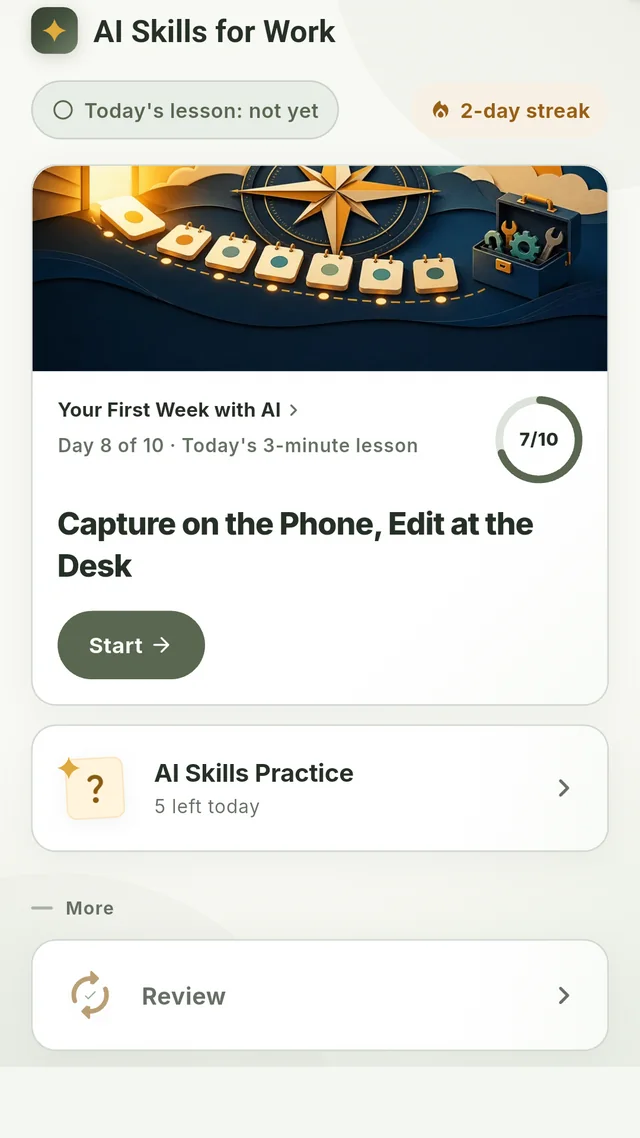
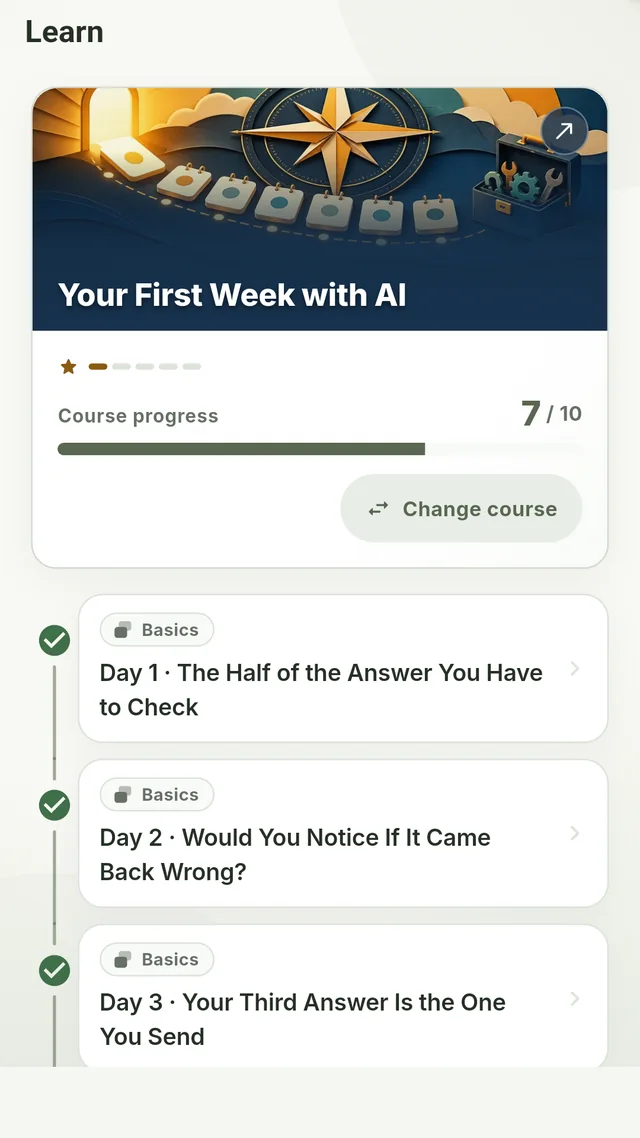
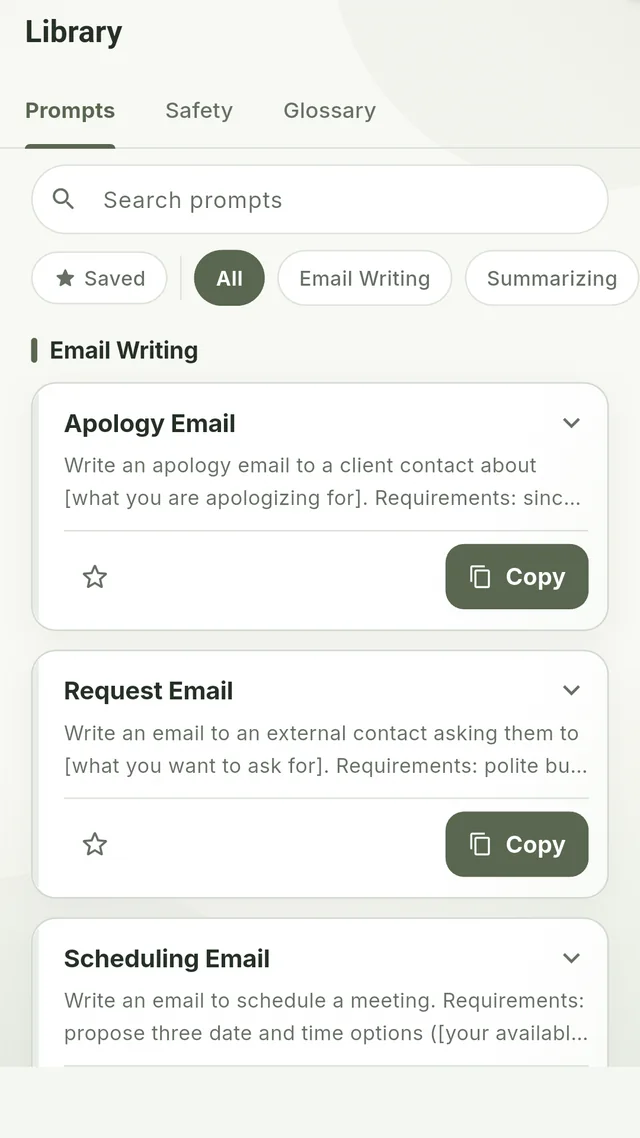
Follow these screens in order for your first session. The numbered markers on each screenshot match the instructions beside it.
123
STEP 1 - HOME
The Home screen brings today's learning and the main tools together. You can begin without searching through menus.
Beginner tip: Start with the large illustrated lesson card. You do not need to understand every shortcut before your first lesson.
123
STEP 2 - LEARN
The Learn screen shows where you are in the selected course and which lesson is available now.
Recommended approach: Complete the current lesson before switching courses so your progress remains easy to understand.
1234
STEP 3 - LIBRARY
The Library includes prompts for common work tasks plus separate Safety and Glossary references.
Important: A prompt is a starting structure, not a finished answer. Review the AI output for accuracy, tone, and missing context.
AFTER EACH LESSON
The learning flow continues after reading. A Knowledge Check tests the key idea, and missed questions can be revisited from Review.
Read the workplace example, key takeaway, and caution before moving on.
Choose the best answer, then read the explanation instead of only checking whether you were right.
If you miss a question, use Review from Home to revisit that specific weak spot later.
BEFORE YOU USE AI OUTPUT
The app helps you recognize common risks, but your organization and your own review still determine what is safe to use.
YOUR FIRST SESSION
You do not need to explore every screen at once. Use this sequence to learn the core flow first.
Your learning progress stays on your device. The app stores completed lessons and question progress locally. AI Skills for Work prepares you to use AI tools more thoughtfully; it does not send a prompt to an AI service for you.
FREQUENTLY ASKED QUESTIONS
Here are quick answers to the questions new AI learners often ask.
No. AI Skills for Work is designed for beginners. Lessons introduce one idea at a time and use practical workplace examples instead of technical explanations.
The daily lesson is designed to take about three minutes. You can then complete its Knowledge Check and optionally use AI Skills Practice.
No. The app teaches practical AI skills and provides prompt templates. You adapt a template, copy it, and use it with the AI tool approved for your work.
Use them as a starting structure. Replace every item in brackets with relevant, non-sensitive details, then review the prompt before copying it.
Read the explanation to understand the key point. Missed questions can remain available in Review so you can return to that topic later.
Completed lessons and question progress are stored locally on your device. They are not sent to an AI service by this app.
Do not enter confidential, personal, credential, or unreleased company information. Follow your organization's AI, privacy, and security policies before using any external AI tool.
Yes. Open Learn and select Change course. For a clearer learning path, consider finishing the current lesson before switching.